
Best Android Webcam Apps for PC in 2026
Do you want to use your Android smartphone as a webcam for your PC? You don’t necessarily need to purchase an expensive external webcam to improve your video quality. Modern Android smartphones come with powerful cameras that can deliver clearer and sharper video than many built-in laptop webcams. With the Best Android Webcam Apps for PC in 2026, you can easily turn your smartphone into a webcam for online meetings, video calls, live streaming, and recording.
Finding the right application, however, can be challenging because different tools offer different connection methods, video quality, and features. Some support wireless connections, while others provide USB connectivity for more stable video transmission. In this guide, we explore the Best Android Webcam Apps for PC in 2026 free, including their features, benefits, advantages, and disadvantages. We also explain which application is suitable for different users so you can choose the right option without wasting time.
What Are the Best Android Webcam Apps for PC in 2026?
The Best Android Webcam Apps for PC in 2026 are applications that allow you to use your Android smartphone’s camera as an external webcam for a Windows computer or another supported desktop system.
These applications generally require two installations: one on your Android smartphone and another on your computer. After connecting both devices through Wi-Fi or USB, the desktop software receives the phone’s camera feed and makes it available to compatible programs.
For example, you can use your smartphone camera with:
- Zoom and Google Meet for online meetings.
- Microsoft Teams for professional communication.
- OBS Studio for live streaming and recording.
- Discord for video calls and communication.
- Skype and other webcam-compatible applications.
- Online classes, interviews, and presentations.
Moreover, some Android webcam apps offer additional controls, including camera switching, exposure adjustment, zoom, video resolution, and microphone support.
Top 5 Best Android Webcam Apps for PC in 2026
We have selected five popular applications based on their connection options, desktop compatibility, available features, and suitability for different users.
Quick comparison of the recommended applications;
| App | Connection | Desktop support | Best for |
| DroidCam | Wi-Fi and USB | Windows, Linux | Everyday webcam use |
| Camo | Wi-Fi and USB | Windows, macOS | Video quality and controls |
| Iriun Webcam | Wi-Fi and USB | Windows, macOS, Linux | Simple wireless setup |
| iVCam | Wi-Fi and USB | Windows | Advanced camera controls |
| IP Webcam | Wi-Fi | Browser, VLC, compatible software | Network camera streaming |
1. DroidCam for PC | Best for Everyday Webcam Use
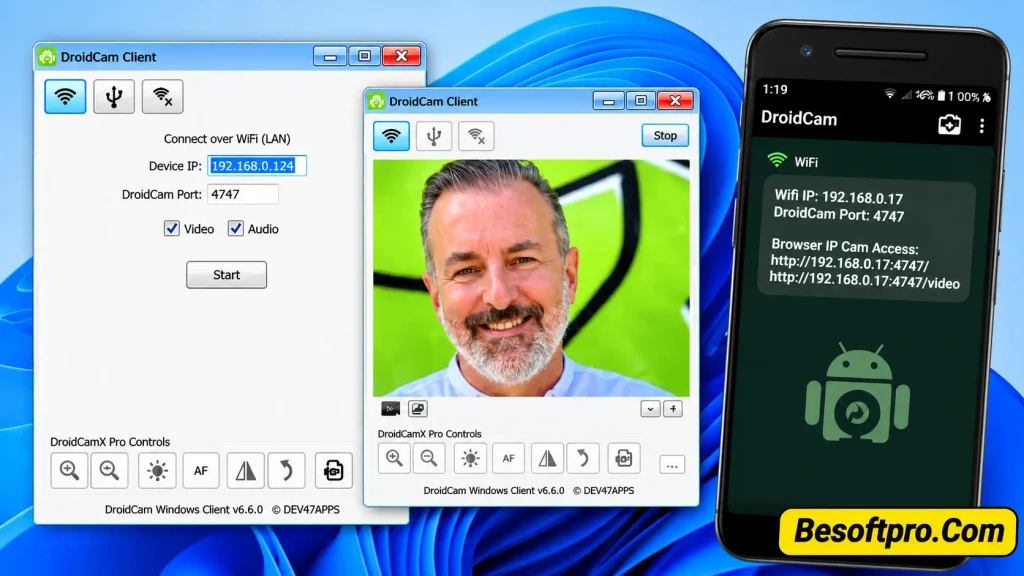
DroidCam is one of the established Android webcam applications for turning a smartphone into a computer camera. It allows users to connect their phones to Windows or Linux computers and use their mobile cameras for video calls, online meetings, and streaming.
The application supports both Wi-Fi and USB connections. Therefore, you can choose a wireless setup for convenience or use a cable when you need a more stable connection.
Another useful feature is its integration with OBS Studio through the DroidCam OBS plugin. This makes it a practical option for content creators who want to use their smartphone camera while recording or streaming.
Features and Benefits
- Wi-Fi connectivity: Connect your Android phone and computer through the same wireless network.
- USB connection: Use a wired connection for a more consistent video feed.
- HD video: The free standard version supports 640 × 480 resolution, while upgraded features provide higher resolutions.
- Microphone support: Send audio from your smartphone to your computer.
- OBS integration: Use the dedicated plugin for direct integration with OBS Studio.
- Camera controls: Adjust exposure, focus, zoom, and other picture settings.
- Background operation: Supported configurations allow the phone to continue streaming with its screen off.
Pros of DroidCam for PC
- Free standard-definition usage without a time limit.
- Supports Wi-Fi and USB connections.
- Compatible with Windows and Linux desktop clients.
- Useful for video meetings and live streaming.
- Offers direct OBS integration.
Cons of DroidCam for PC
- Higher video resolutions require paid features.
- USB setup may require USB debugging and additional drivers.
- The free standard version has limited resolution.
Best For: Users who want a straightforward webcam application for everyday video calls, online classes, and streaming.
2. Camo App | Best for Video Quality and Camera Controls
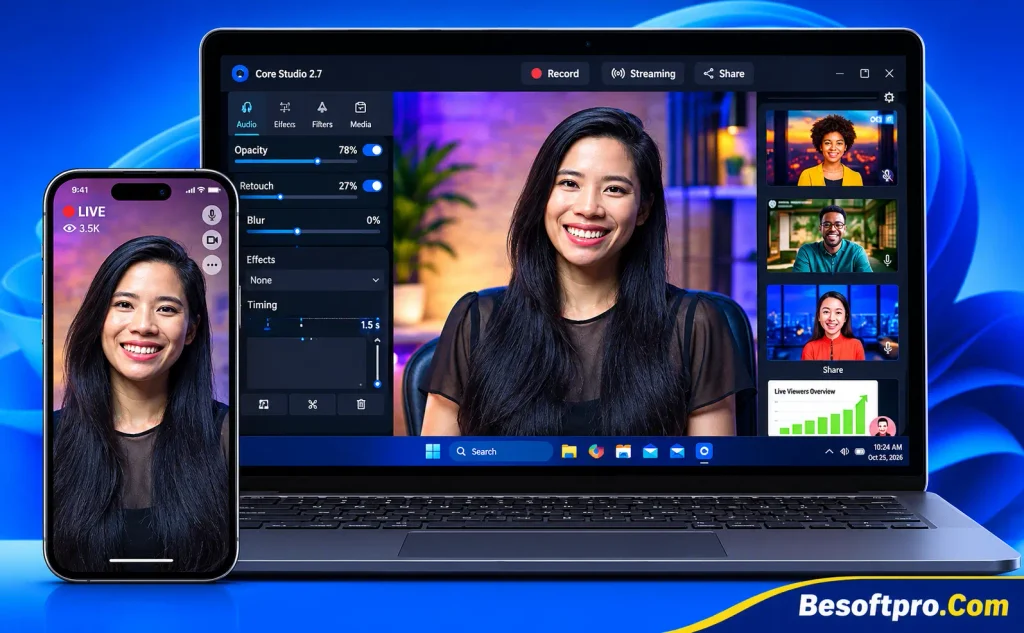
Camo is another excellent option for people who want to use their Android smartphone as a high-quality webcam. It combines a mobile camera application with desktop software called Camo Studio.
One of its biggest advantages is its collection of video adjustment tools. You can customize your camera feed, improve framing, and adjust available picture settings before starting a meeting or recording session.
Furthermore, Camo supports Windows and macOS, making it suitable for people who use different computer platforms. You can connect your Android smartphone through Wi-Fi or USB, depending on your setup.
Features and Benefits
- Wireless connectivity: Pair your Android smartphone with Camo Studio using a QR code.
- USB connectivity: Connect your phone directly to your computer.
- Video customization: Adjust available image settings and framing through Camo Studio.
- Camera selection: Use supported front and rear cameras.
- Recording options: Preview and record video through the desktop application.
- Meeting compatibility: Use Camo Camera as a video source in compatible applications.
- Microphone support: Use supported phone audio as an input source.
The free version provides useful webcam functionality, while Camo Pro offers additional capabilities and higher-quality options. Available features depend on your device and subscription.
Pros of Camo App
- User-friendly desktop interface.
- Supports Windows and macOS.
- Offers both USB and wireless connections.
- Provides useful video customization tools.
- Suitable for professional meetings and content creation.
Cons of Camo
- Some advanced features require a paid subscription.
- USB connection on Windows requires enabling USB debugging.
- Compatibility and available camera features vary by Android device.
Best For: People who want better control over their smartphone camera for professional meetings, presentations, and video production.
3. Iriun Webcam | Best for Simple Wireless Connectivity
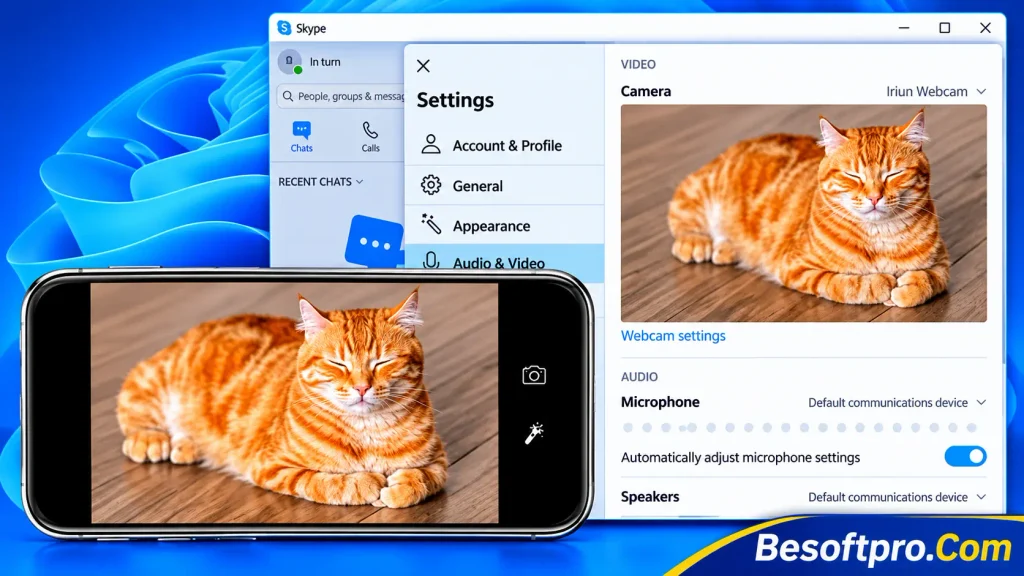
Iriun Webcam is a practical choice for users who want a simple way to connect an Android smartphone to a computer. It turns your phone’s camera into a webcam that can be selected in compatible desktop applications.
Unlike complicated camera setups, Iriun follows a relatively straightforward process. Install the Android application, download the desktop client, connect both devices, and select Iriun Webcam in your preferred video application.
Additionally, Iriun supports Windows, macOS, and Linux desktop systems. This makes it a flexible choice for users who work across different operating systems.
Features and Benefits of Iriun for PC
- Wireless connection: Connect your phone and computer through the same Wi-Fi network.
- USB support: Use a wired connection where supported.
- High-resolution video: Supports resolutions up to 4K, depending on the phone and configuration.
- Camera switching: Use supported smartphone cameras.
- Zoom control: Adjust the camera view using supported controls.
- Screen-off functionality: Continue using the camera with the phone screen turned off.
- Cross-platform support: Desktop clients are available for Windows, macOS, and Linux.
Iriun also offers a Pro version that removes the watermark and advertisements while providing additional camera controls.
Pros of Iriun APK
- Simple installation and setup.
- Supports multiple desktop operating systems.
- Offers Wi-Fi and USB connectivity.
- Supports high-resolution video on compatible devices.
- Useful for meetings and online classes.
Cons of Iriun
- The free version includes advertisements and a watermark.
- Some advanced controls require the Pro version.
- Video performance depends on network quality and phone hardware.
Best For: Users who need a straightforward webcam application with flexible desktop compatibility.
4. iVCam for PC | Best for Advanced Camera Features
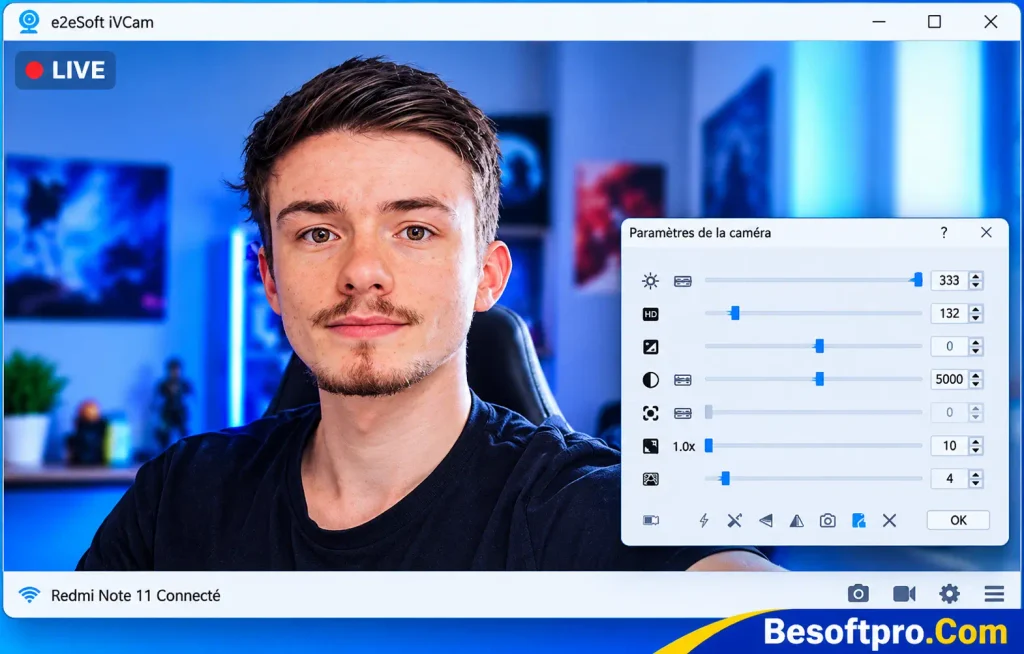
iVCam is another useful application that transforms an Android smartphone into an HD webcam for Windows computers. It is particularly interesting for users who want more camera controls than basic webcam applications provide.
The application supports both Wi-Fi and USB connectivity. You can use your phone’s front or rear camera and adjust different video settings through the desktop client.
Moreover, iVCam supports several video resolutions, including 720p, 1080p, and 4K on compatible devices. It also provides options for recording, taking snapshots, and adjusting camera settings.
Features and Benefits
- HD and 4K video: Select available resolutions according to your device’s capabilities.
- Wireless and USB connections: Choose between convenience and a more stable wired connection.
- Camera adjustments: Configure exposure, focus, white balance, ISO, and zoom where supported.
- Microphone support: Use your smartphone as an audio input for your computer.
- Background replacement: Access supported effects such as background blur and green screen.
- Video recording: Record video and capture snapshots through the desktop client.
- Multiple devices: Connect multiple supported smartphones to one computer.
The free version includes a watermark and advertisements. A paid license removes these limitations and unlocks additional functionality.
Pros of iVCam App
- Offers several video resolution options.
- Provides advanced camera adjustments.
- Supports both USB and Wi-Fi.
- Includes microphone and recording functionality.
- Compatible with popular webcam applications.
Cons
- The free version displays a watermark.
- Advertisements may interrupt the experience.
- Primarily designed for Windows desktop users.
- Some advanced features require a paid license.
Best For: Users who want more control over video quality, camera settings, and recording.
5. IP Webcam | Best for Network Camera Streaming
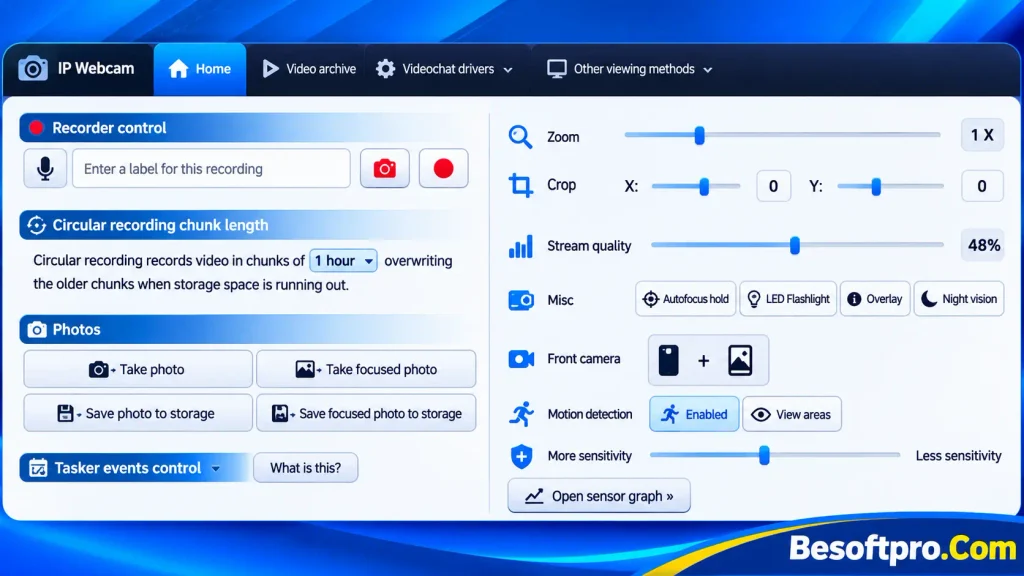
IP Webcam is slightly different from the other applications on this list. Instead of relying entirely on a dedicated desktop webcam client, it turns your Android smartphone into a network camera that can be accessed through a web browser or compatible software.
This approach is particularly useful when you want to view your phone’s camera feed on another device connected to the same network. The application supports video streaming through a browser, VLC media player, and compatible third-party software. It can also work with MJPEG-compatible tools, including supported video surveillance and monitoring applications.
Features and Benefits
- Network streaming: Stream video over a local Wi-Fi network.
- Browser access: View the camera feed through a compatible web browser.
- VLC compatibility: Access supported streams using VLC media player.
- Multiple video formats: Offers different streaming and recording options.
- Audio streaming: Supports audio through compatible configurations.
- Motion detection: Includes motion detection and sound-trigger features.
- File uploading: Supports uploading recordings through supported plugins and services.
One important difference is that IP Webcam does not work exactly like a conventional virtual webcam client. You may need additional compatible software to use its stream as a camera source in meeting applications.
Pros of IP Webcam APK
- Provides browser-based camera access.
- Works over a local Wi-Fi network without requiring internet access.
- Supports VLC and compatible third-party software.
- Includes motion detection features.
- Useful for network monitoring and streaming.
Cons of IP Webcam APK
- Requires additional configuration for some PC applications.
- Does not provide the same straightforward virtual webcam setup as DroidCam or Camo.
- Performance depends on network quality.
- The application contains advertisements.
Best For: Users who want to stream their Android camera over a local network or use it with browser-based and compatible monitoring software.
How to Download and Set Up an Android Webcam App on PC
Using one of the Best Android Webcam Apps for PC in 2026 is relatively easy. However, you must install the correct mobile application and desktop software to establish a connection.
Follow these steps to get started.
1-Download the Android Application
Open the Google Play Store on your smartphone and search for your preferred webcam application. Download the official version rather than installing an APK from an unknown website.
2-Install the PC Software
Visit the application’s official website and download its Windows desktop client. Install the software and follow the on-screen instructions.
3-Connect Your Smartphone and PC
You can generally connect your devices using either of these methods:
- Wi-Fi: Connect your smartphone and computer to the same wireless network. Open both applications and follow the pairing instructions.
- USB: Connect your phone using a data-capable USB cable. Some applications require USB debugging to establish the connection.
4-Select Your Smartphone Camera
Open your preferred video conferencing application, such as Zoom or Google Meet. Navigate to its camera settings and select the corresponding virtual camera.
5-Test Your Webcam
Start a video preview and check the picture quality, camera angle, and microphone. If everything works correctly, your Android smartphone is ready to use as a PC webcam.
How to Choose the Best Android Webcam App for PC in 2026?
Choosing between different webcam applications depends on your requirements, computer compatibility, and internet connection. Before downloading anything, consider the following factors.
Video Quality
Video quality is one of the most important factors when selecting a webcam application. Look for software that supports HD resolution and offers additional picture adjustments.
However, remember that higher resolution does not always guarantee better video. Your smartphone camera, lighting conditions, and connection quality also influence the final result.
USB and Wi-Fi Connectivity
Choose an application that offers flexible connection options. Wi-Fi is convenient because it eliminates cables, while USB generally provides a more consistent connection and lower latency.
Compatibility with PC Software
Check whether the application works with your preferred programs. If you regularly use OBS Studio, Zoom, Microsoft Teams, or Google Meet, make sure the webcam software supports your requirements.
Camera and Audio Controls
Advanced controls can improve your video experience. Features such as autofocus, exposure adjustment, zoom, camera switching, and microphone support are particularly useful.
Free and Paid Features
Many Android webcam applications provide free versions with certain limitations. For example, some restrict resolution, display watermarks, or include advertisements. Therefore, compare free and premium features before purchasing a license.
Important Tips for Better Android Webcam Performance
The Best Android Webcam Apps for PC in 2026 can deliver impressive results, but your setup also matters. Apply these practical tips to improve your video experience.
- Use the rear camera: Most smartphones have better rear cameras than front-facing cameras.
- Improve lighting: Place a light source in front of your face instead of behind you.
- Use a phone stand: A tripod or stable phone holder prevents unwanted movement.
- Prefer USB for important meetings: A wired connection can reduce wireless interruptions.
- Keep your phone charged: Continuous camera streaming consumes battery power.
- Monitor temperature: Long recording sessions can make your smartphone hot.
- Close unnecessary applications: This can help reduce resource usage and improve performance.
- Check microphone settings: Select the correct audio input before joining a meeting.
Is There a Built-in Android Webcam Feature?
An important development worth knowing about in 2026 is Android’s native USB webcam functionality. Android 14 QPR1 introduced support for using compatible Android devices as USB webcams. When a manufacturer enables this functionality, you can connect your smartphone to a computer through USB and select the Webcam option in the phone’s USB settings.
The phone then appears as a standard USB Video Class (UVC) camera, allowing compatible Windows, macOS, Linux, and ChromeOS computers to recognize it. However, this feature is not available on every Android smartphone. Actual availability depends on device manufacturers and software implementation.
Safety Tips Before Downloading Webcam APK Apps
When looking for the Best Android Webcam Apps for PC in 2026 free, downloading applications from trustworthy sources is essential.
Consider these precautions:
- Download applications from Google Play Store or their official developer websites.
- Avoid modified APK files from unfamiliar websites.
- Review camera and microphone permissions before granting access.
- Avoid connecting to unfamiliar public Wi-Fi networks.
- Keep your Android application and desktop software updated.
- Disable USB debugging when you no longer need it.
- Close the webcam application after completing your meetings or recordings.
Also, remember that webcam applications can access sensitive camera and microphone data. Review their privacy policies and data safety information before installation.
Frequently Asked Questions (FAQs)
1. Can I use my Android phone as a webcam for my PC?
Yes. You can use applications such as DroidCam, Camo, Iriun, and iVCam to turn your Android smartphone into a webcam. Most require a mobile application and corresponding desktop software.
2. Which is the best free Android webcam app?
DroidCam is a strong choice for users who want unlimited standard-definition webcam usage. Camo is another option with useful free features. However, free features and limitations vary between applications.
3. Can I connect my Android phone to a PC webcam without Wi-Fi?
Yes. Several applications support USB connectivity, including DroidCam, Camo, Iriun, and iVCam. You may need to enable USB debugging, depending on the application and device.
4. Can I use my Android webcam with Zoom and Google Meet?
Yes. Most applications that create a compatible virtual camera can work with Zoom and Google Meet. Simply select the corresponding camera from the video settings.
5. Are Android webcam apps free to download?
Most popular Android webcam applications offer free downloads. However, certain features, including higher video resolutions, advanced controls, and watermark removal, may require payment.
6. Which app supports 4K webcam streaming?
Iriun, iVCam, and DroidCam offer high-resolution options, including 4K in supported configurations. Actual performance depends on your smartphone, computer, connection, and application version.
Conclusion
Using your Android smartphone as a PC webcam is an affordable way to improve video quality without purchasing additional hardware. Several applications offer useful features, including wireless connectivity, USB support, HD streaming, microphone integration, and camera adjustments.
The Best Android Webcam Apps for PC in 2026 depend on what you want to achieve. DroidCam is a practical option for everyday meetings, Camo offers useful video customization, Iriun provides straightforward cross-platform connectivity, iVCam delivers advanced camera controls, and IP Webcam is suitable for network-based streaming.
Before downloading, check desktop compatibility, available features, and connection requirements. Most importantly, choose an official application that meets your needs and provides a reliable connection. Ultimately, the Best Android Webcam Apps for PC in 2026 can help you make better use of your existing smartphone camera for online meetings, remote work, education, and content creation without immediately investing in a separate webcam.